This article compares seven common browser lockdown tools that you should keep your eyes open for in 2027. In short: Respondus LockDown Browser works with the major LMSs and runs on Windows, Mac, Chromebook, and iPad, from $3,295 a year. Digiexam Lockdown is a better fit for Canvas schools on Windows and Mac laptops. It costs less and also covers Canvas assignments. Safe Exam Browser is free and has good support for Moodle, but requires the most IT work. Google Forms locked mode is free too, but only on school-managed Chromebooks. Honorlock and Talview are primarily proctoring tools built for remote assessments. Schoolyear suits universities that need desktop apps like Excel or Python during exams.
The right pick depends on three things: which devices your students bring, whether you want assessments to stay in your LMS, and how much setup your IT team can take on.
Below is what each option does, who it suits, and where it falls short, whether you're picking your first one or looking for alternatives to the one you have.
Quick comparison
| Tool | What it is | Where assessments live | Devices | Price | Best fit |
|---|---|---|---|---|---|
| Respondus LockDown Browser | Custom secure browser | Your LMS, opened in the Respondus browser | Windows, Mac, Chromebook, iPad | From $3,295/year | Schools with mixed devices, incl. iPads |
| Safe Exam Browser | Open-source secure browser | Your LMS or exam platform | Windows, Mac, iPad | Free | Moodle schools with technical IT staff |
| Google Forms locked mode | Built-in quiz setting | Google Forms | Managed Chromebooks only | Free with Workspace for Education | Chromebook schools using Google Forms |
| Digiexam Lockdown | LMS lockdown app | Your LMS (Canvas) | Windows and Mac | From $1,995/year | Schools using Canvas LMS |
| Honorlock | Proctoring with a browser lock | Your LMS, in Chrome | Windows, Mac, Chromebook | Custom quote | Colleges running remote assessments |
| Talview | Proctoring with a secure browser | Your LMS or exam platform | Windows and Mac | Custom quote | Certification, hiring and online programs |
| Schoolyear | Secure exam workspace | Your LMS or exam platform | Windows, Mac, managed Chromebooks | Custom quote | Universities and colleges using desktop apps |
Respondus, Digiexam and Safe Exam Browser prices are published list prices as of September 2026. Honorlock, Talview and Schoolyear quote on request. Respondus's entry tier covers 1–2,000 LMS seats and Digiexam's covers 500 students and teachers, so they aren't a per-student match.
Respondus LockDown Browser
With Respondus LockDown Browser, students open a custom browser that blocks other apps, copying, printing and screen capture while they take a quiz in the LMS. It integrates with the major LMSs, including Canvas, Schoology, Blackboard, Moodle and Brightspace, and it runs on Windows, Mac, Chromebook and iPad.
What's worth noting is that the solution is known to be unreliable for some school environments. Student newspapers and review sites report slow startups, failed installs and crashes on assessment day (Saratoga Falcon, G2 reviews). Mac users have run into problems too: in February 2026, a Canvas New Quizzes issue stopped the Mac and iPad versions from starting at the University of Oklahoma (OU Daily). Each failed launch costs class time, which hurts most during an in-class essay that's already tight on time (Saratoga Falcon).
Another thing to know: in Canvas, Respondus only covers Classic Quizzes and New Quizzes, but not assignments. That's a gap if your teachers run essay assessments as Canvas assignments.
Safe Exam Browser: free (ish)
Safe Exam Browser (SEB) is an open-source secure browser developed by ETH Zurich and funded by the SEB Alliance. It's free to download and use, and it runs on Windows, macOS and iOS.
SEB works with almost any web-based assessment system. But we recommend it if you're running Moodle because it has a built-in connection, and so do ILIAS and OpenOlat. Canvas support comes through third-party projects rather than a native integration, which is why you'll mostly see SEB in Moodle schools and European universities.
The trade-off is setup. Each assessment needs an SEB configuration. Moodle can generate it from the quiz settings, but on other platforms someone usually has to create, test and distribute the configuration files. There's an optional SEB Server for central management, but you host it yourself. There's no commercial support contract either. Help comes from the community, or from your platform vendor if it's built on SEB.
Choose SEB if your school runs Moodle, has IT staff comfortable with configuration files, and wants a free option.
What does Safe Exam Browser cost? Nothing. It's freeware with no registration, but setting it up yourself puts more load on your IT team.
Google Forms locked mode: free, but only works on managed Chromebooks
If your school runs Google Workspace for Education and gives students school-managed Chromebooks, locked mode is already built in. Teachers turn it on in a Google Forms quiz. Students can't open other tabs or apps until they submit, and the teacher gets an email if a student leaves the quiz.
It's simple, and there's no extra cost with Workspace for Education. The catch is that school-managed Chromebooks need a paid Chrome management license. It also only works in one setup: Google Forms quizzes, taken on Chromebooks enrolled in your school's admin console. Personal Chromebooks, Windows laptops, Macs and iPads can't enter locked mode. Quizzes in Canvas or another LMS aren't covered.
Choose locked mode if you're a managed Chromebook school.
Schoolyear: built mainly for universities and colleges with desktop apps
Schoolyear's Safe Exam Workspace takes over the student's screen and closes other programs during an assessment. Its strength is running full desktop software like Excel, SPSS, Matlab or Python inside the secured session, which browser-only tools generally can't do. It runs on Windows, Mac and managed Chromebooks and integrates with Canvas, Moodle, Brightspace and Blackboard.
Choose Schoolyear if you're a university or college with assessments that primarily wants to lock down desktop applications.
Digiexam Lockdown: lock down assessments inside Canvas
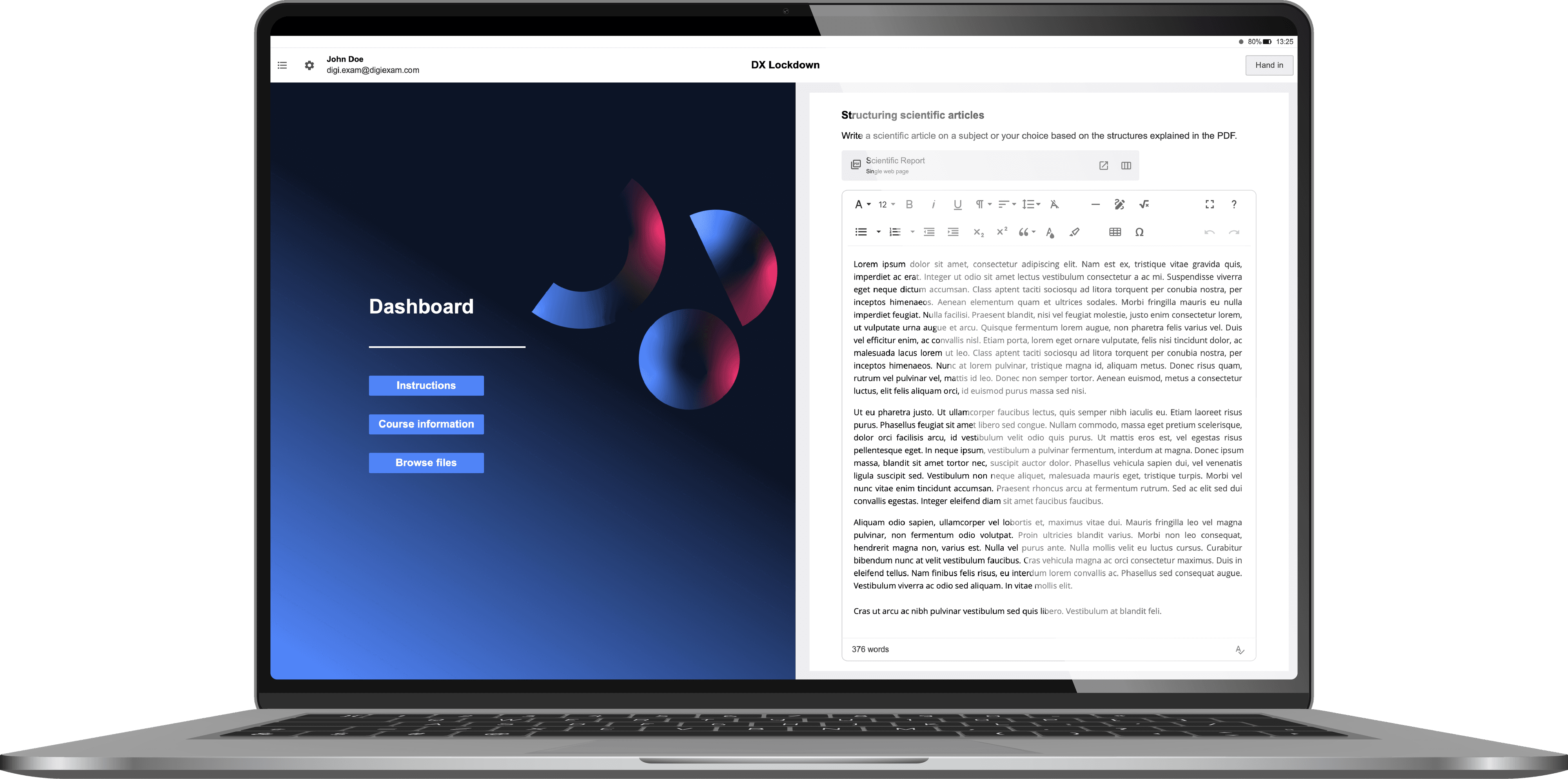
Digiexam Lockdown is the choice if you are running Canvas as your LMS. Students open the Digiexam Workspace app on their laptop, sign in with Canvas, and work in the real Canvas interface. When they start a locked-down assessment, the app closes everything else and allows only Canvas plus the resources you've approved. When they submit, the lock releases.
Teachers don't need to learn a new tool. They pick the course and assessment, choose which students the lock applies to and when, and toggle lockdown on. It works the same way for Classic Quizzes, New Quizzes and assignments, so essay assessments are covered too.
A few things to note. Digiexam Lockdown runs on Windows and Mac laptops only. It's built for in-class assessments on school premises, not remote testing with webcam proctoring. And it's built for Canvas.
Pricing starts at $1,995 a year for 500 students and teachers.
Choose Digiexam Lockdown if you're a Canvas school on Windows and Mac laptops (school-issued or BYOD) and want secure assessments without moving them out of the LMS.
Honorlock: proctoring first, lockdown second
Honorlock is an online proctoring service that runs as a Chrome extension inside your LMS. Its lockdown piece is called BrowserGuard. When it's on, students can't open other tabs or websites, and attempts to switch to other apps are blocked and flagged. Schools can also require a desktop app (Windows and Mac) that blocks programs running outside the browser, such as AI assistants and screen-capture tools.
The main event is the proctoring. Honorlock records the webcam, screen and audio, AI flags suspicious behavior, and a live proctor can step in. It's built mainly for students taking assessments at home, where nobody is in the room, though some colleges also use it in classrooms.
It runs in Chrome on Windows, Mac and Chromebook, but not on iPads or phones. Most customers are colleges and universities, and pricing is by quote.
For an in-class assessment, it's a lot of machinery. You're recording students on camera while a teacher is already standing at the front of the room. If the browser lock is what you're after, a dedicated lockdown tool does that job with less setup.
Choose Honorlock if your students take assessments remotely.
Talview: proctoring for certification and online programs
Talview sells proctoring and online exam tools, plus AI interviewing software for hiring teams. It sells a downloadable Secure Browser that locks the device, blocking other apps, tabs, screen capture and copy-paste until the assessment is submitted. On top of that come AI and live proctoring options. It connects to Moodle, Canvas, Blackboard and other systems through plugins, a browser extension or an API.
Its customers lean toward certification bodies, hiring teams, universities and online program providers. Pricing is by quote.
Choose Talview if you run high-stakes certification or remote assessments at scale.
How to choose
Start with where students take the assessment. If they're at home, you're looking at proctoring tools like Honorlock or Talview. If they're in class, a lockdown tool is enough.
Then look at devices. If you're a managed Chromebook school, look at Google Forms locked mode, Respondus or Honorlock. If students bring Windows and Mac laptops, every option except Google Forms locked mode is open to you.
Last, be honest about IT capacity. Safe Exam Browser is free but asks the most from your IT team. Respondus and Digiexam both need a one-time LMS setup and an app on each student device. After that, it's on teachers to turn lockdown on per assessment.
Before you sign anything, ask each vendor these questions:
- Which assessment types does it cover?
- How long does it take a student to get from opening the app to the first question?
- Which resources can students open during the assessment, and how do you set that up?
- What happens if a student's laptop crashes mid-assessment?
Hope you found this post enlightening!