
What are lockdown browsers?
What they are, how they work, and when to use them.
What lockdown browsers are, how they lock down the computer, and when they're the right choice for your assessments.

Written by Christopher Flodin, Growth Manager
Key takeaways
- Lockdown browsers lock the computer to one assessment.
- Until the student submits, they can't open other apps or websites, use keyboard shortcuts or take screenshots, unless the school allows it.
- Lockdown browsers work best with someone in the room.
- The lockdown covers the device, and the person supervising catches what the software can't see, like a phone under the desk.
- Remote high-stakes assessments need proctoring.
- At home, nothing stops a student from using a second device. For assessments that matter, you need proctoring on top of the lockdown.
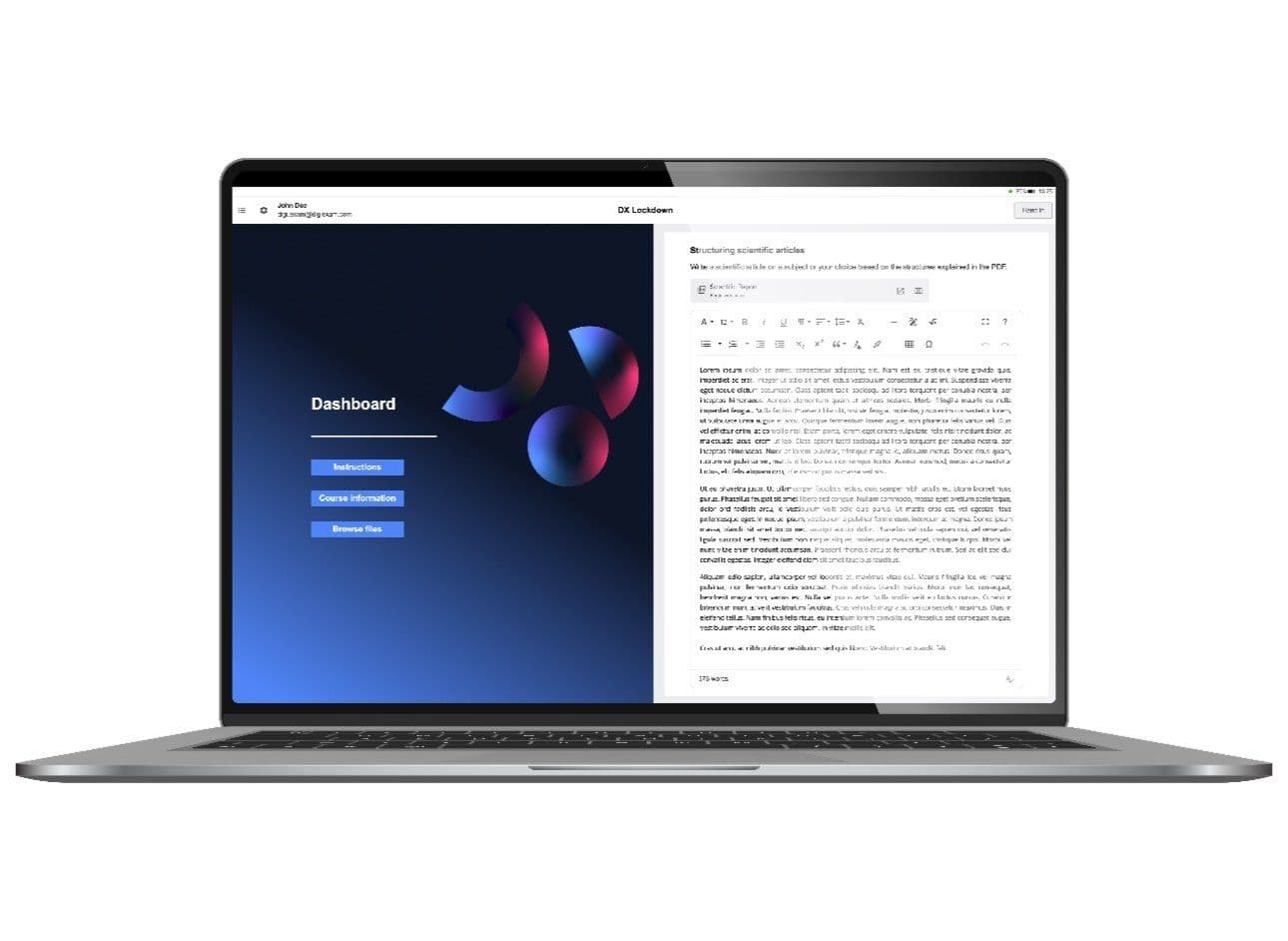
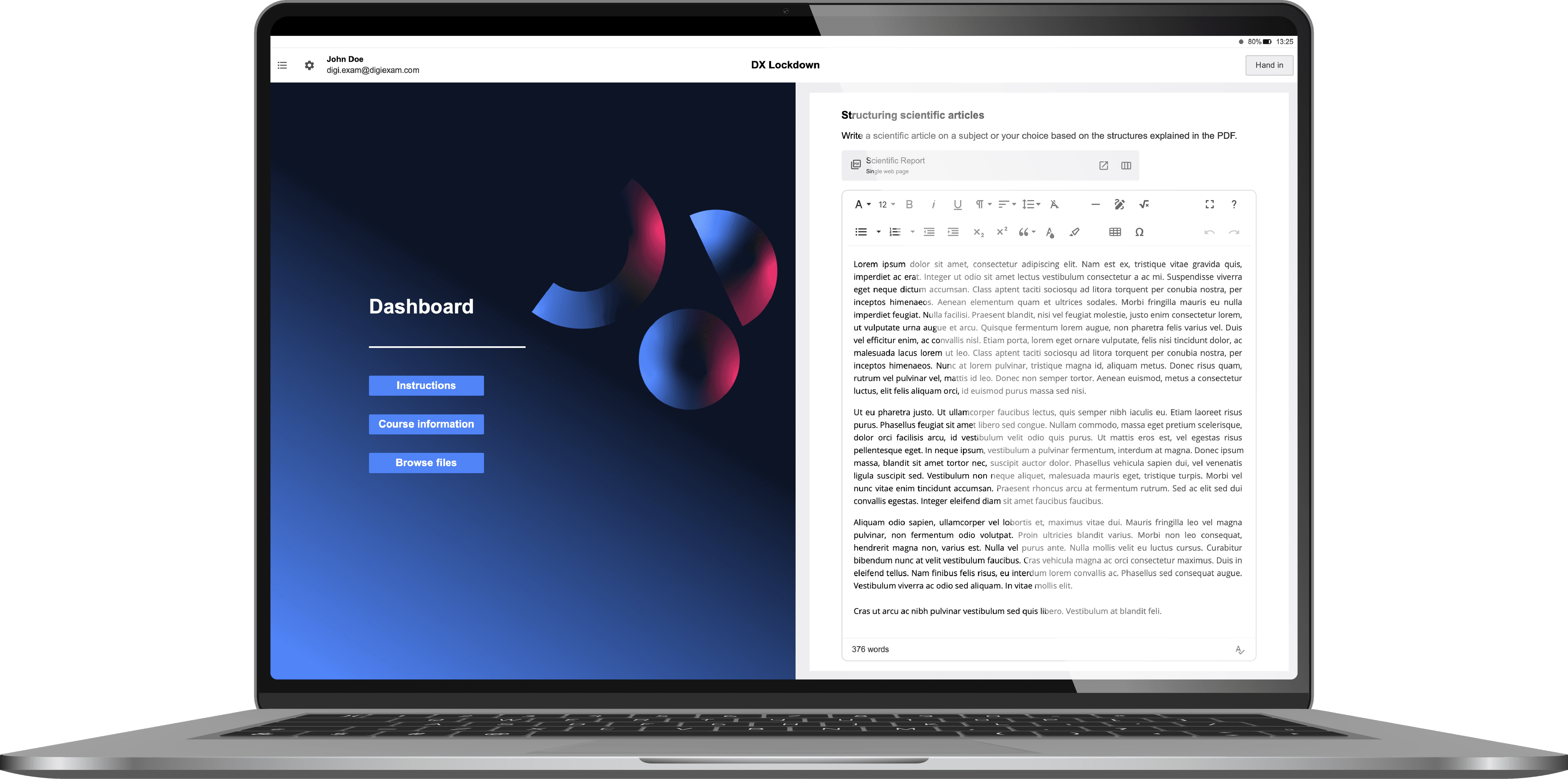
To put it plainly, lockdown browsers, secure exam browsers, and secure test browsers are all synonyms for the same type of software: an application that locks the student's computer so that only a single assessment can be accessed. It gives teachers peace of mind that while it runs, students can't access other apps, websites, keyboard shortcuts or take screenshots, unless the school has specifically allowed it. When the student submits the assessment, the lockdown is lifted and the student is once again free to use other applications.
How to best use lockdown browsers
Lockdown browsers fit some scenarios well and others not at all. Here’s where they work and where they don’t.
On-site assessments
At Digiexam, we believe lockdown browsers are an excellent tool for on-site assessments. An ideal setup looks like this: the students take the assessment on site, with their device locked down, and with staff members supervising the assessment. The lockdown stops students from opening anything they shouldn’t on the device, and the supervisor catches what the software can’t see, like a phone under the desk.
Of course, it's impossible to fully rule out misconduct. There are always ways to get around even the most secure systems, but this setup lowers the risk substantially.
Keeping students focused
You don’t need a high-stakes assessment to get value out of lockdown browsers. Many educators in the K-12 sector find that when they limit students to a defined set of resources during a lesson, students stay more focused and learn more effectively. Using a secure browser could be an effective way to accomplish this.
When not to use lockdown browsers: remote high-stakes assessments
The job of lockdown browsers is to control the computer, not the external environment. It goes without saying, then, that if a student takes a high-stakes exam at home, nothing stops them from asking ChatGPT on a second device.
So, for remote assessments where the result matters, a secure browser is not enough, you also need a proctoring solution on top of the lockdown. That means software that uses the student's webcam and microphone to flag unusual behavior for review.
Frequently asked questions
What are lockdown browsers?
Lockdown browsers are applications that lock a student's computer to a single assessment. While they run, students can't open other apps or websites, use keyboard shortcuts or take screenshots unless the school has allowed it. You'll also see them called secure exam browsers or secure test browsers.
How do lockdown browsers work?
Most lockdown browsers are installed as an app on the student's computer, which gives them the operating system permissions they need. When the assessment starts, they take over the screen, close or block other programs and control the clipboard and screen capture. When the student submits, the lock lifts and the computer works as normal again.
Are browser extensions as secure as installed lockdown browsers?
Not on Windows and Mac. There, a Chrome extension or a locked quiz setting only controls what happens inside the browser. It can block new tabs, but it can't stop a student from switching to another app or taking a screenshot. The most it can do is flag that the student left the tab. On school-managed Chromebooks, an extension can lock the whole device.
Can students still use a calculator or other resources?
Yes, if the school allows it. Most lockdown browsers let you allowlist specific resources, like a calculator, PDFs or websites. Everything else stays blocked.
Can students get around lockdown browsers?
No system rules out misconduct completely. Lockdown browsers check for common workarounds, like a second monitor or a virtual machine. In a classroom, a teacher watching the room covers what the software can't see, like a phone under the desk.
Do lockdown browsers use the webcam or record students?
Not on their own. Webcam and microphone monitoring is the responsibility of proctoring software.
Can you use lockdown browsers for remote assessments?
You can, but for high-stakes remote assessments they aren't enough on their own. Nothing stops a student at home from using a phone or getting help from someone in the room. For those, you need proctoring on top of the lockdown.